Why Everyone is Buying the Insta360 Link 2 Pro (Full Review)
I've been using the Insta360 Link 2 Pro as my primary webcam for several months now, and in that time it's become a fixture on my desk for work calls, livestreams, and occasional video shoots. The hype around this camera felt real when I first unboxed it, and after extended use what I found was a mix of genuinely impressive engineering, a few practical compromises, and some small frustrations that only show up after you live with the device day-to-day.
Introduction: why I replaced my old webcam
Before I got the Link 2 Pro, I was using a mid-range webcam and a separate microphone. I upgraded because I wanted better framing, smoother auto-tracking for solo presentations, and cleaner video quality without rigging a full camera setup. I also wanted something that would "just work" with Zoom, Teams, and OBS. In my experience, few webcams I tested delivered the combination of motorized tracking, crisp image processing, and flexible mounting the way the Link 2 Pro does.
First impressions and build quality
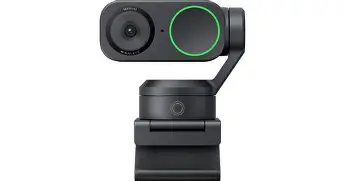
Out of the box I noticed the Link 2 Pro feels well-built and weighty in a reassuring way. The design is compact but substantial: a cylindrical head with a motorized base that allows the camera to pan and tilt smoothly. The magnetic clip/mount on my unit stuck firmly to my laptop and my small tripod, which made switching between setups fast. I liked that the unit doesn't feel plasticky; materials and tolerances are clearly above typical cheap webcams.
One thing I appreciated immediately was the attention to simple details: the USB-C cable is braided and long enough for typical desk layouts, and the included quick-start materials were minimal but useful. I also noticed right away that there is no mechanical privacy shutter built in — something I initially overlooked but later found inconvenient. I solved it with a tiny physical cover, but I wished Insta360 had included a toggle or built-in shutter for peace of mind.
Image quality and color handling
Where the Link 2 Pro shines most is in how it handles color and exposure in a range of lighting conditions. In my experience, skin tones look natural without the plasticky over-processing I’ve seen on other webcams. I tested it in natural window light, under warm desk lamps, and in dim evening lighting. In well-lit rooms the clarity and detail were excellent — backgrounds remained readable and my face had good edge detail without overly aggressive sharpening.
Low light is, of course, still a challenge for any small sensor. What I found was that the Link 2 Pro uses a combination of noise reduction and dynamic exposure to keep faces visible without exploding noise, but in very dark rooms you still get softness and loss of fine detail. Compared to my standalone mirrorless camera used as a webcam (with a proper lens), the Link 2 Pro is not a full replacement; but compared to any other plug-and-play webcam I've owned, it feels like a significant step up.
Auto-tracking, gimbal motion, and portrait framing
The motorized head and tracking are why many people are buying this device, and they largely deliver. I used the tracking for online presentations where I walked along a whiteboard and for casual livestreams where I moved between a desk and a standing area. The tracking is smooth and human-like: it anticipates movement and recenters gradually rather than snapping.
Discover deals on Laptops & Computers — updated daily.
See Deals →That said, I did find edge cases. In small rooms with complex backgrounds (shelves, plants, or mirrors), the tracking sometimes hesitated or made a small corrective jerk as it re-identified my face. If you pace quickly or move erratically close to the camera, you'll notice the motor trying to catch up. For most meeting-room and streaming scenarios this is a minor quirk rather than a deal-breaker, but it's visible if you look for it.
Microphone and audio experience
I tested the Link 2 Pro's built-in microphones in calls and short recordings. For quick conference calls they're perfectly serviceable; voices come through clear with decent presence. What I found, though, is that they are not a substitute for a dedicated USB or XLR microphone if audio quality matters (podcasts, vocal streams, or professional recordings). The mics capture a little more room ambience than I prefer and the proximity effect isn't as controlled as with directional mics.
In short: the onboard mic is convenient and good enough for everyday use, but I continued to use my desktop condenser for anything where audio quality mattered.
Software: what works and what needs polish
I installed Insta360’s desktop app to access advanced features, and that was a mixed experience. The app gives you fine control over framing, exposure, background blur, and AI modes (auto framing, follow modes, and gesture controls). I liked the presets and the ability to lock exposure or set a preferred field-of-view. Updates rolled out through the app and I received a couple of firmware improvements over the months I used it.
On the downside, the app occasionally felt a bit clumsy on macOS: menu placement and window persistence were inconsistent, and I had to relaunch it a few times after sleeping my laptop. On Windows it was more stable, and integration with OBS via the virtual camera feature worked well. If you rely solely on plug-and-play without the app, the Link 2 Pro still functions fine in almost every meeting app.
Compatibility and workflows
Setting the camera up for Zoom, Teams, and Google Meet was painless — all of them recognized the Link 2 Pro as a webcam source. For streaming, I routed the camera into OBS and used the software controls to adjust framing and background blur before sending it to the scene. The device behaved reliably during multi-hour sessions, though I did notice the motorized head draws a little power and the camera will warm slightly during long recordings; nothing alarming, just noticeable by touch.
What I appreciated most (real owner details)
- Natural skin tones: I appreciated how my face looked on calls without aggressive smoothing or over-sharpening.
- Smooth motorized tracking: For standing presentations and whiteboard work, the tracking saved me from running cables or juggling a second camera.
- Solid build and mount: The magnetic clip worked well on my laptop and on a small tripod, and the braided cable felt durable.
- Flexible software features: The app's presets and follow modes let me quickly tailor the camera to different setups.
What bothered me as an owner
- No physical privacy shutter: I wished Insta360 included a mechanical cover — I had to buy a small third-party slide cover.
- Tracking edge cases: In rooms with complex backgrounds or reflective surfaces, the tracking occasionally jittered.
- Microphone limitations: If you need studio-quality audio, you'll still want a dedicated microphone.
- Software polish: The companion app needed a couple of stability updates on my Mac before it felt reliable.
Pros & Cons
Pros
- Excellent, natural-looking image quality for a webcam.
- Smooth gimbal-style auto-tracking that works well for presentations and moving shots.
- Solid build and versatile mounting options.
- Useful software features for framing, exposure, and AI modes.
- Good compatibility with common calling and streaming apps.
Cons
- No integrated mechanical privacy shutter.
- Built-in microphones are convenient but not studio-grade.
- Tracking can stutter in busy or reflective environments.
- Companion software needed a couple of updates to reach full stability on my platform.
Comparison: Insta360 Link 2 Pro vs. common alternatives
| Feature | Insta360 Link 2 Pro | Logitech Brio (typical competitor) | Razer Kiyo Pro (typical competitor) |
|---|---|---|---|
| Tracking | Motorized gimbal tracking; smooth follow modes for presenter movement | No motorized tracking; digital pan/zoom only | No motorized tracking; strong low-light sensor but fixed field of view |
| Image quality | Very natural color processing; strong detail in good light | Good color; slightly harsher processing | Excellent low-light performance; wide, natural field of view |
| Microphones | Integrated mics — good for calls, not studio quality | Decent built-in mic — generally comparable | Built-in mic similar — still recommend external mic for quality audio |
| Mounting | Magnetic clip + tripod threads; versatile | Traditional clip + tripod threads | Clip + tripod threads; more compact footprint |
| Software | Feature-rich app with presets and firmware updates | Robust, mature software ecosystem | User-friendly with strong streaming features |
| Best for | Presenters, solo streamers, users who move a lot during calls | Professional calls where reliable performance matters | Streamers who need good low-light performance and fast response |
Buying guide: who should consider the Link 2 Pro?
After using the Link 2 Pro for months I can recommend it for certain users and advise caution for others. Here’s a practical guide based on how I actually used the camera.
Shop the latest Laptops & Computers picks on Amazon.
See Deals →Consider it if you:
- Give frequent presentations where you move around (whiteboards, demo tables) — the tracking is a huge convenience.
- Want a single, tidy webcam solution rather than juggling a separate camera, capture card, and complex rig.
- Care about natural-looking skin tones and prefer minimal heavy-handed software smoothing.
- Need flexible mounting and a device that looks professional on a desk or tripod.
Think twice if you:
- Require absolute studio-grade audio — you'll still want a separate microphone.
- Often work in very dark rooms and rely on a webcam alone for capture — a dedicated camera with a larger sensor is better.
- Need a built-in physical privacy shutter — if that matters a lot, plan to add a third-party cover.
- Have lots of reflective or cluttered backgrounds and expect flawless tracking every time — the Link 2 Pro is great but not infallible.
Practical tips for buyers
- Test it in your most common lighting situation: the Link 2 Pro's processing is very good, but your room's lighting will determine final results.
- Place the camera slightly farther back for a more natural perspective; close-up framing can exaggerate the motorized corrections.
- Use the companion app to lock exposure or choose a follow mode that matches your movement pattern — this reduces jitter.
- If you care about privacy, budget a small physical webcam cover; it's a cheap fix for a missing feature.
Real-world scenarios where it excelled for me
Two use cases where I saw the Link 2 Pro really shine were client presentations and solo tutorial videos. For client calls where I needed to switch between a whiteboard and my laptop, the automatic recentering meant I could focus on the content rather than manual camera adjustments. For tutorial videos recorded in my home office, the color and framing made editing simpler because I spent less time correcting skin tones and exposure.
I also used the camera for a handful of casual livestreams. With a small external microphone and the Link 2 Pro feeding OBS, I had a compact setup that looked much more professional than a typical webcam + mic on a cheap stand.
Final thoughts and conclusion
After several months with the Insta360 Link 2 Pro, my overall feeling is that it's one of the most complete webcam packages I've used. The combination of gimbal-style tracking, solid image quality, and practical software features makes it especially attractive for presenters and single-person creators who want a plug-and-play solution without sacrificing a polished look.
There are trade-offs: the lack of a mechanical privacy shutter, microphone limitations compared to dedicated audio gear, and occasional tracking quirks in busy environments. But in my experience these are manageable for most users, and the advantages outweigh the downsides for my primary use cases.
If you move during calls, present on camera regularly, or want a webcam that feels like a step up from the usual offerings, the Link 2 Pro is worth serious consideration. What I found after months of use was that it removed a lot of friction from producing decent-looking video while staying compact and easy to live with. For many people — myself included — that's exactly why everyone seems to be buying it.